Review and change marks
Open a student from the results list to see every criterion with its mark and comment. Change what you disagree with, then confirm each criterion.
Open a student
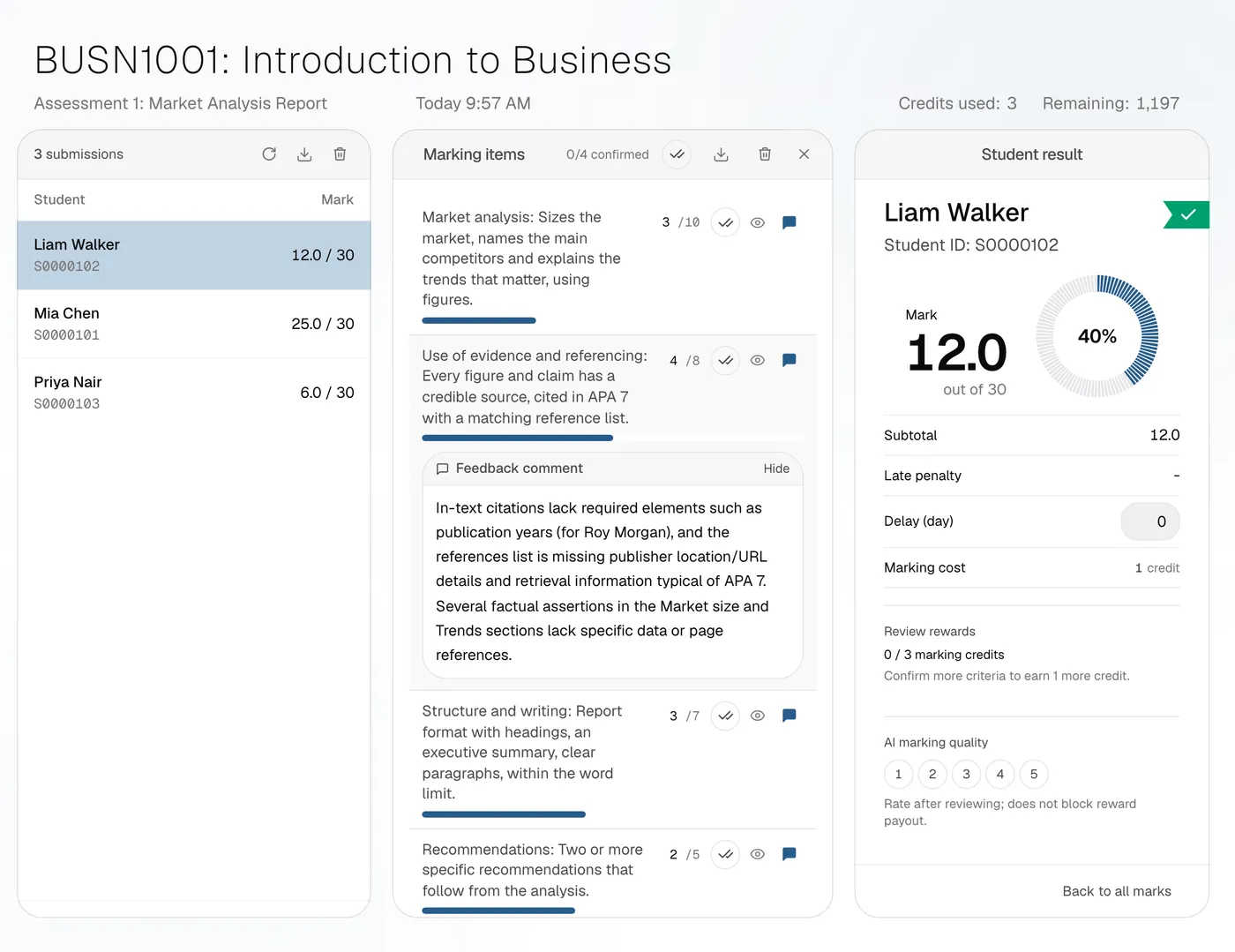
Click a student's row. Marking items lists each criterion, and the Student result card shows their mark, Subtotal, Late penalty and Delay (day). Choose Back to all marks to return to the list.
Change a mark or comment
- Click a mark to edit it. A mark cannot go above the criterion's maximum.
- Click in the comment box ("Write feedback for this criterion…") to edit the feedback.
Changes save on their own. The panel shows Saving, then Saved. If it shows Not saved, the change was reverted: check your connection and try again.
Confirm criteria
Confirm each criterion once you agree with it, or choose Confirm all. Editing a mark or comment counts as confirming it. Click a confirmed criterion's tick again to un-confirm it.
Tag a criterion for review
Choose Tag for review on any criterion you want to come back to. Remove review tag clears it.
Resolve flagged items
For a student with the Review status, choose Resolve. Items needing your input shows each flagged criterion with the marker's question. For each one, pick a suggested option, enter Your mark, or describe what you see in Or describe what you see, and let the AI mark it.
Choose Save progress to keep going later, or Save and complete when every item is resolved. Resolving uses no credits.
Review rewards
Confirming criteria earns bonus marking credits, shown under Review rewards:
- Up to 3 credits per submission, 1 for each third of its criteria you confirm.
- Rewards are spent before your plan's credits.
- You can hold up to 9 unspent reward credits.
- A reward is taken back if you un-confirm criteria, re-mark the submission, or delete it.
Rate the AI
Under AI marking quality, rate the marking from 1 to 5. It is optional. Your edits and ratings help guide future marking of the same assessment in your account. They are not applied to other lecturers' marking.
Download this student
Use Download in the Marking items panel for this student's Excel or PDF marking sheet.
Common questions
- Do I have to confirm every criterion?
- No. Confirming is how you record that you have checked a mark, and it earns review rewards. Marks export whether or not they are confirmed.
- Will my changes be lost if I re-mark the student?
- Yes. Re-marking replaces the marks and comments, clears confirmations and takes back the review reward. Your quality rating stays.